
Comment Details
Device Info
Every Heurio comment automatically captures the timestamp, operating system, browser version, screen resolution, and DOM selector — so engineers can reproduce a bug without asking 'on what device?'.
Why it matters: every comment ships with the exact environment context engineers need to reproduce the issue.
Heurio includes device information with each heurio, providing context for the evaluation and facilitating more accurate feedback. This guide covers what's captured and how to access it.
#Captured information
Each heurio contains the following information about the device it was taken from:
- Timestamp: indicates when the heurio was created.
- Operating system: shows the operating system of the device.
- Browser version: specifies the version of the browser used for the evaluation.
- Screen resolution: provides the device's screen resolution, offering context for display-related feedback.
- DOM selector: identifies the specific element's selector on the page, facilitating accurate evaluation and debugging.
#How to access this data
#Heurio extension
- Open the heurio's details by clicking on the placed heurio.
- Click on the "Info" tab to view the device information.
Heurio device info in the Heurio extension.
#Heurio web app
- Open the heurio's details by clicking on its card in the web app.
- The device information is displayed right below the screenshot, providing immediate context for the feedback.
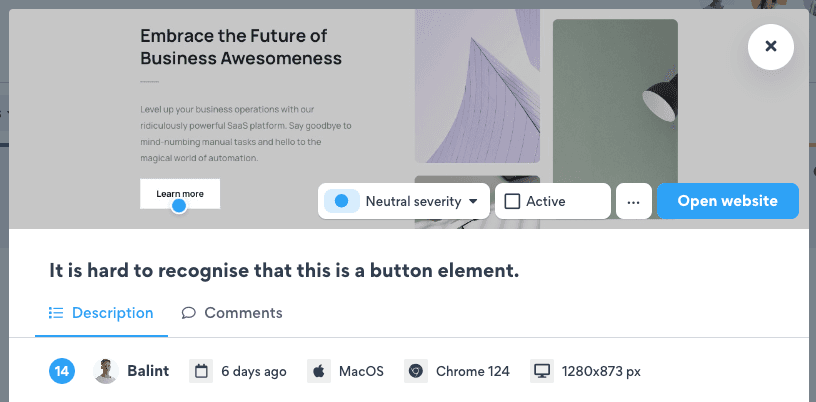
Heurio device info in the Heurio web app.
#Pair Device Info with screen size
Combine Device Info with Change Screen Size to review the same website at desktop, tablet, and mobile breakpoints — every heurio remembers which viewport it was created at.
Frequently asked questions
- What exactly does Heurio capture in Device Info?
- The timestamp, operating system, browser version, screen resolution, and the DOM selector of the element the heurio is pinned to. Together they let any teammate reproduce the issue precisely.
- Do I need to do anything to enable Device Info?
- No. Device Info is captured automatically for every heurio you create — there's no toggle and no opt-in.
- Where can I see Device Info?
- In the extension, open a heurio and switch to the 'Info' tab. In the web app, the device info appears right below the screenshot when you open a heurio's details.
- Does Device Info also appear in exports?
- Yes. PDF and CSV exports include the device info per heurio so the data follows the comment when it leaves Heurio.
- What's a DOM selector and why do I want it?
- A DOM selector identifies the exact element the heurio is anchored to (e.g. main > section.hero > button.cta-primary). Developers use it to jump straight to the element in DevTools or the codebase instead of hunting for it by description.